Get a Google API key
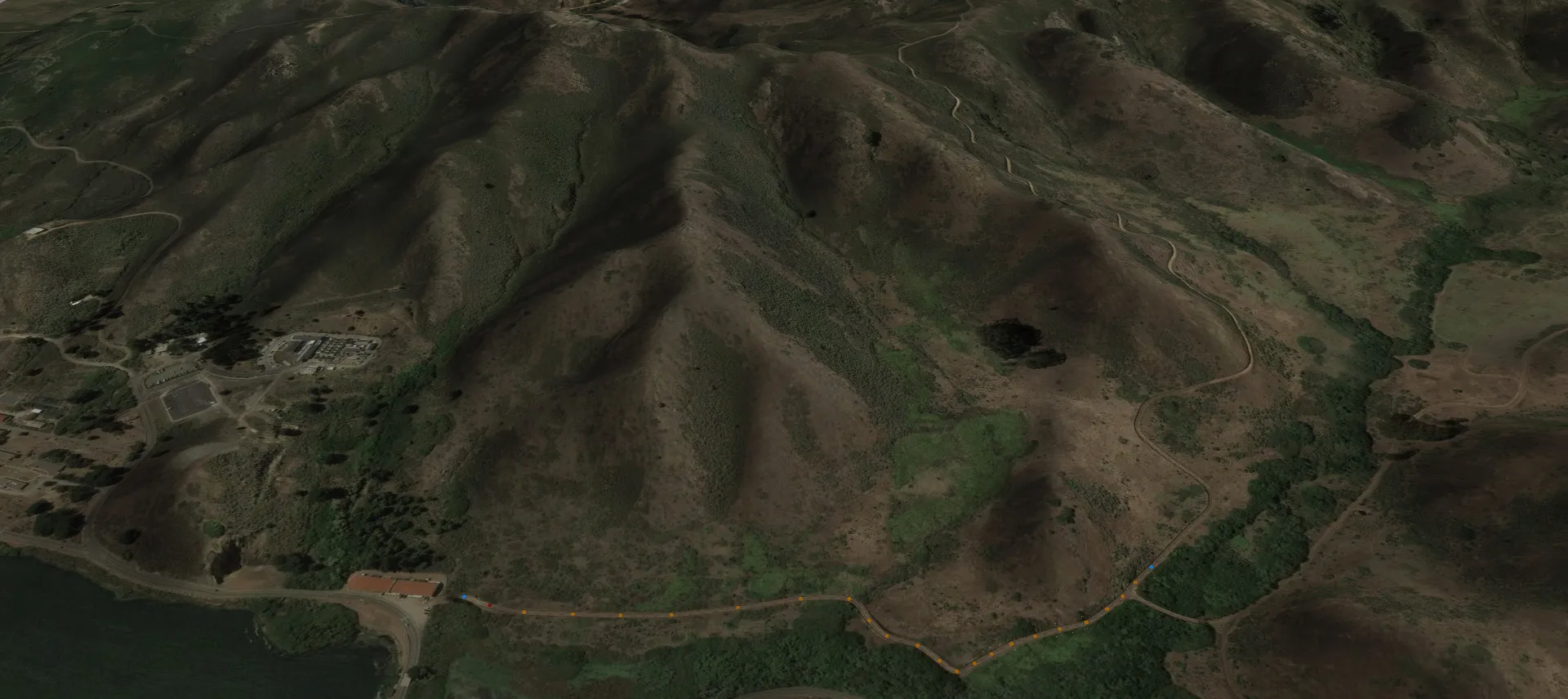
RTB uses Google's Maps Static and Maps Elevation APIs to fetch the imagery and height data behind real-world landscapes. You'll need your own Google account and API key.
Before you start
The data is free up to a limit, but Google caps usage to protect its systems, and RTB needs enough data that you'll have to create a Google account with billing enabled. This may need a credit card. Google includes a free monthly usage allowance. Check Google's current pricing for details.
The basic steps are:
- Set up a Google account and turn on billing.
- Create a Google Cloud project.
- Create an API key. This is what RTB needs.
- Enable the Maps Static and Maps Elevation APIs and restrict your key to them.
- Paste the key into RTB.
Google updates its console often, so your screens may look a little different from the ones below. The basic steps stay the same.
-
Create a Google account
Use your existing Google account, or follow Google's instructions to create a new one. Then turn on billing in the Google Cloud console. This step may need a credit card.
-
Create a Google project
Google requires a project before you can create an API key, and each project can have its own key. From the Google Cloud console, create a new project and give it a name (for example, "MyAPI"). RTB doesn't use the name, so call it anything you like.
-
Create an API key
An API key identifies you to Google when RTB requests data.
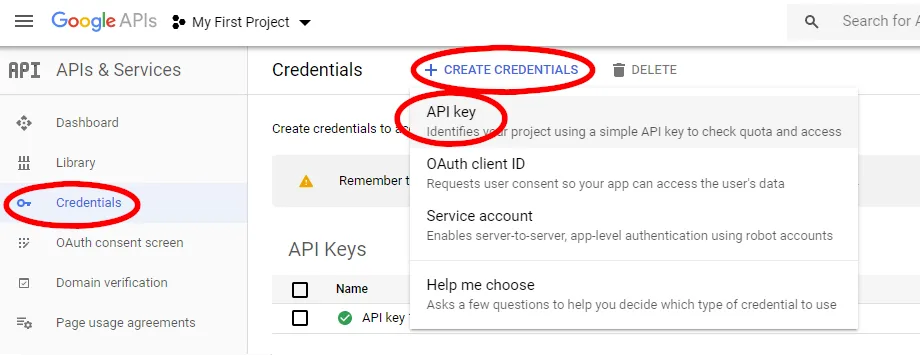
- In the console, make sure your project is selected, then open Credentials.
- Click + Create credentials and choose API key.
- After a few seconds, your new key is generated and displayed. Copy the key. You'll paste it into RTB later.
- Save the key. You'll restrict it after enabling the APIs.
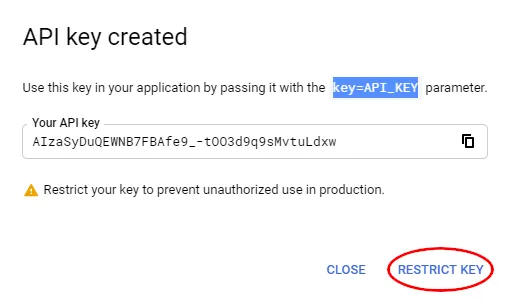
Don't try to use the key shown in the video or screenshots. You need your own.
-
Enable the APIs
Next, tell Google which services the key will use by enabling the Maps Static and Maps Elevation APIs.
- In the console, click + Enable APIs and services.
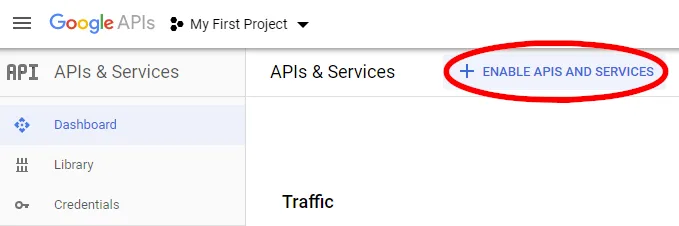
- Search for Maps Static API, open it and click Enable.
- Repeat for the Maps Elevation API.
- Once both are enabled, your dashboard will look something like this:
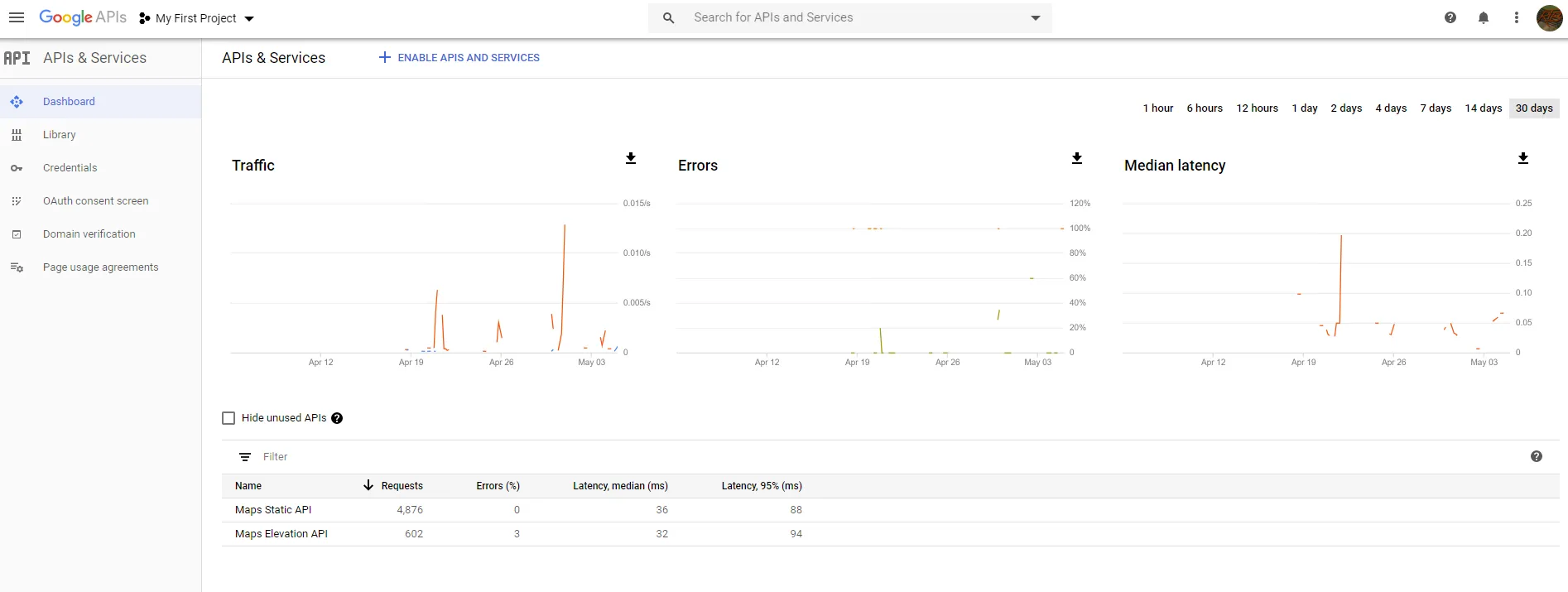
It's fine if other APIs are also enabled. Google enables some by default.
Finally, restrict your key to these two APIs:
- In the console, open Credentials and edit your API key.
- Under API restrictions, select Restrict key.
- Tick the two Maps APIs and save.
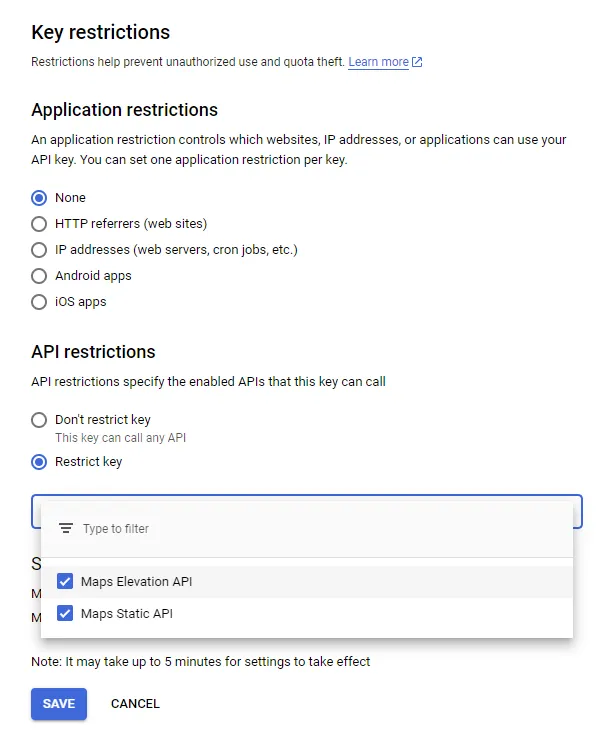
-
Add the key to Race Track Builder
- Open Race Track Builder and create a new project.
- Select the Google APIs for the image and height plugins.
- Paste your API key into both plugins, then click OK.
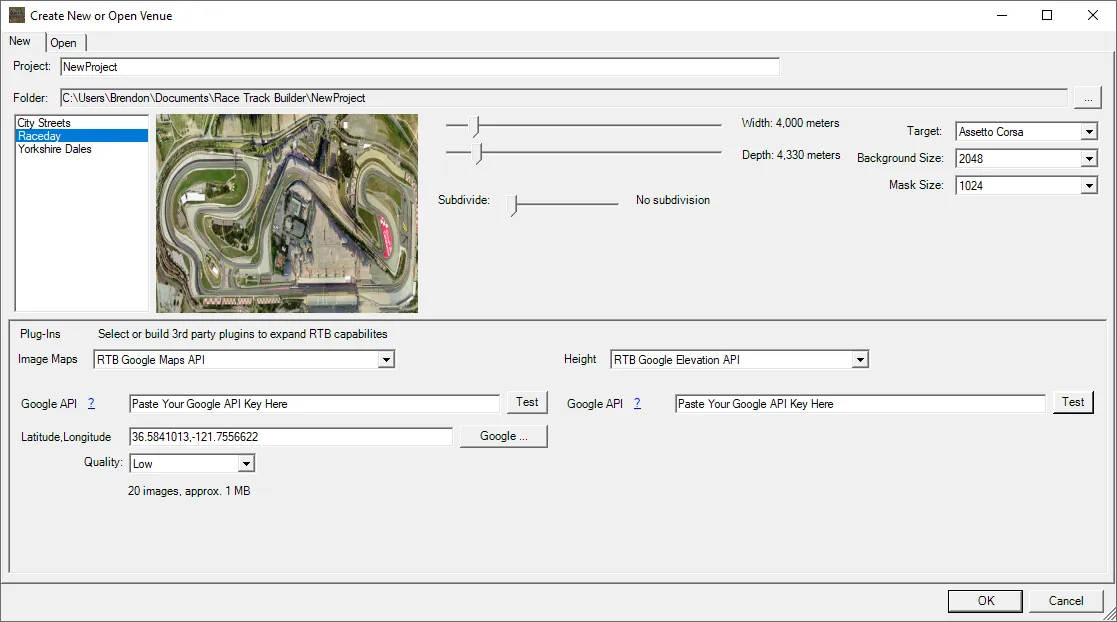
You're ready to import Google data into RTB.
More about Google's APIs
Available now on Steam
Start building your perfect race track today. Updates are freely available.